Two ways to preview a color on your wall
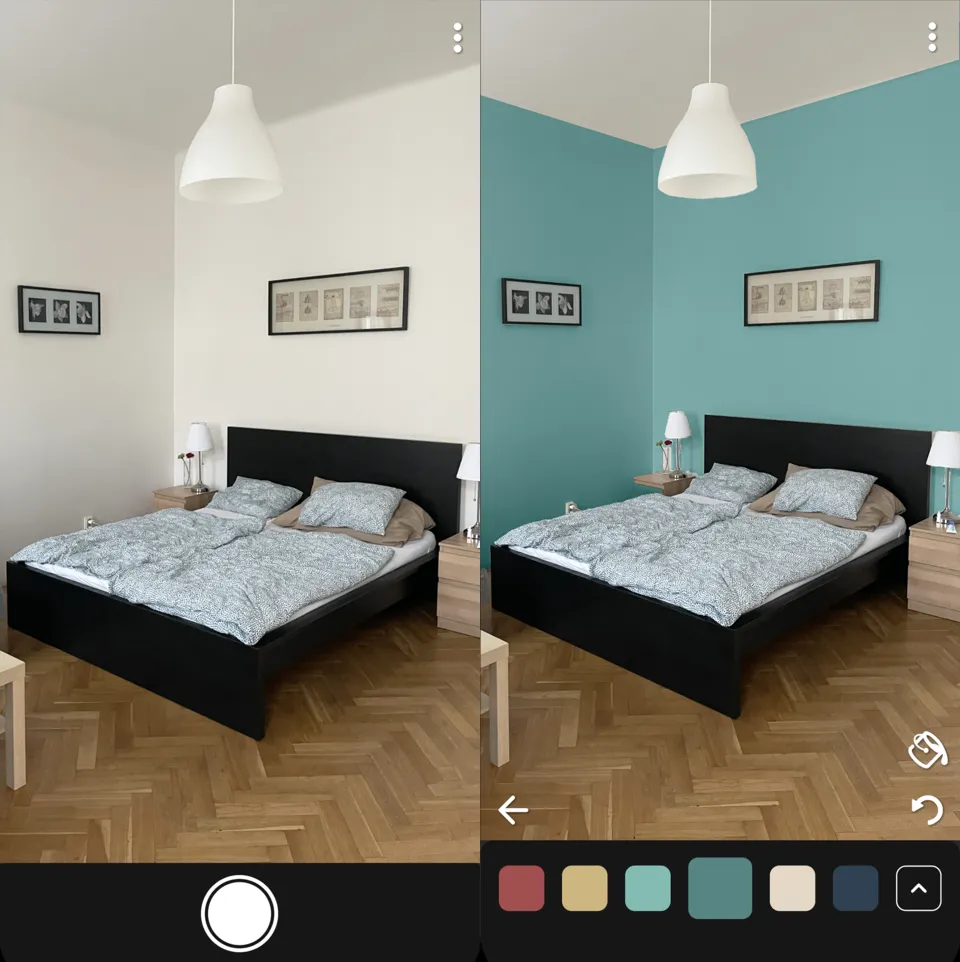
A photo visualizer paints the walls in a still photo. You tap a wall, it fills with the color, and you can try the next one, save the result or compare two versions side by side.
A live camera view, often called AR, tints the wall on screen while you point the phone at it. It is quick for ruling colors out, but the camera keeps adjusting brightness and white balance as you move, so the same color can look different from one second to the next. For comparing finalists, a still photo is steadier.
How to do it with your phone
- Take a photo of the wall in good light, straight on, with as little in front of it as you can. A photo you already have works too.
- Open it in a paint visualizer. In Paint my Room, choose Use camera or Import photo, or Panorama to fit a whole room into one picture.
- Tap the wall. The paint fills the surface up to its edges and keeps the photo's light and shadow.
- Try other colors on the same wall, or a different color on each wall.
- Save or export the versions you like and look at them again in the room itself.
Then test the shortlist for real
A preview takes you from dozens of colors to two or three. It can't settle the last choice, because a phone screen, the camera and the room's light all change how a color looks, and paint makers say so in their own small print. Buy samples of the finalists, put a large patch on the wall you look at most, and look at it in the morning and again with the lamps on. Our guide to testing a paint color before you buy covers that step.
Which app to use
If you already know the brand you'll buy, its own app has every one of its colors by name and number: Color Expert or ColorSnap for Sherwin-Williams, Color Portfolio for Benjamin Moore, the Dulux Visualiser in the UK. If you're comparing brands, or your color comes from somewhere else, use a brand-neutral visualizer such as Paint my Room and type the color's HEX code. Our comparison of paint visualizer apps goes through each.